Overview
CookieBeam provides an official Google Tag Manager template that handles all consent management automatically. This template supports Google Consent Mode v2, Microsoft Consent Mode (Clarity & UET), and regional consent defaults.
Template Features
Google Consent Mode v2
Full support for ad_storage, analytics_storage, ad_user_data, ad_personalization
Microsoft Consent Mode
Native support for Microsoft Clarity and UET consent signals
Regional Defaults
Configure different defaults for EEA, UK, US, and other regions
Zero Dependencies
High-performance CDN loading with no external dependencies
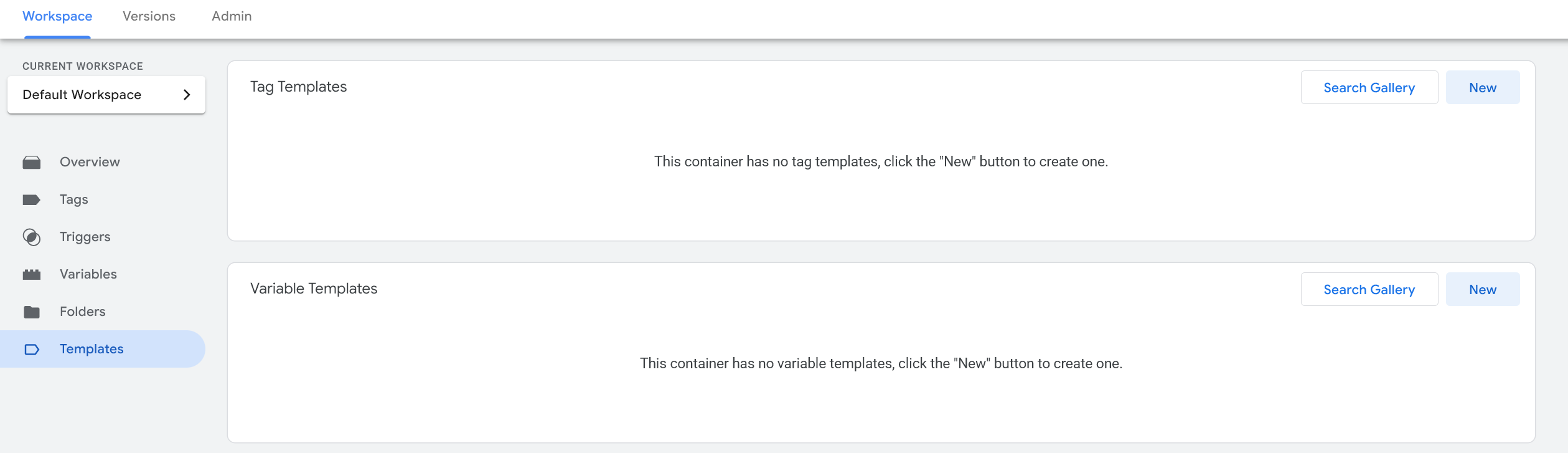
Find CookieBeam in the Gallery
In your GTM web container, open Templates > Search Gallery and search for CookieBeam. Select CookieBeam Consent Mode, review its permissions, and click Add to workspace.
Installation Steps
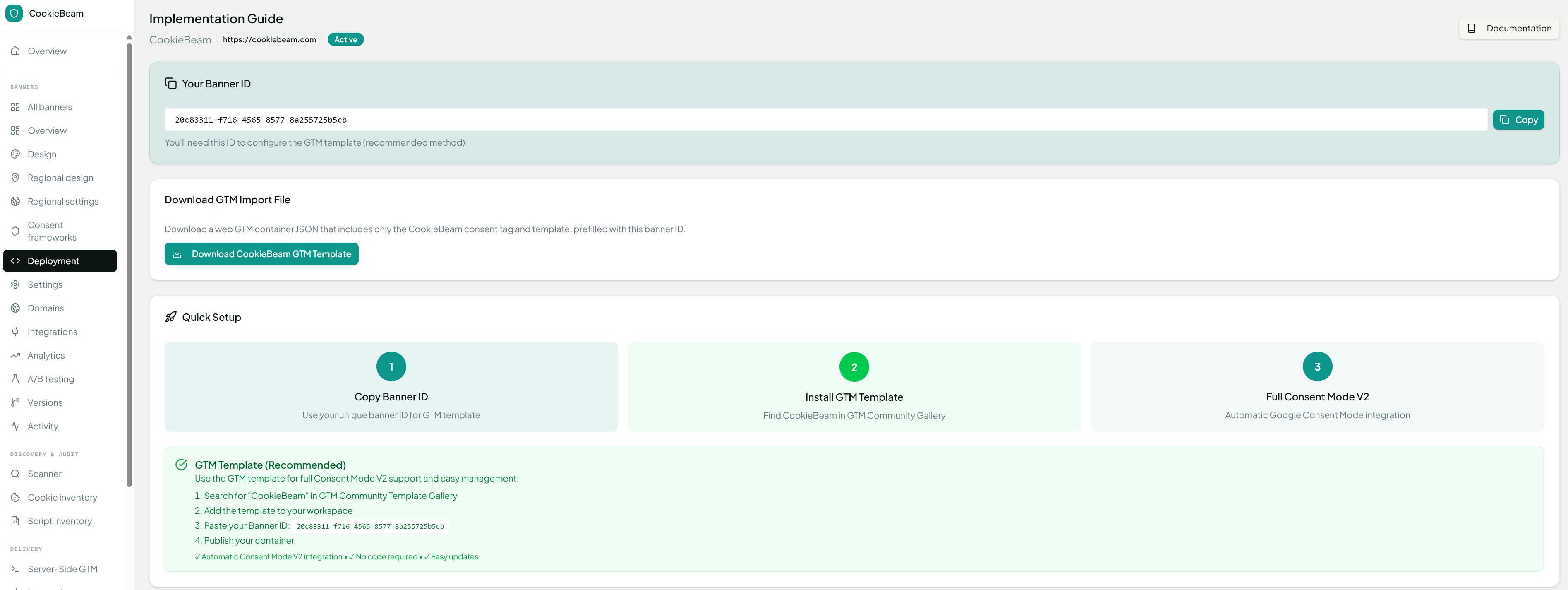
Get Your Banner ID
Open your banner in the CookieBeam dashboard, go to Deployment > Install, choose the Google Tag Manager tab, and copy the Banner ID.
Add the Gallery Template
Open Templates > Search Gallery, search for CookieBeam, and select CookieBeam Consent Mode. Review the requested permissions and click Add to workspace.
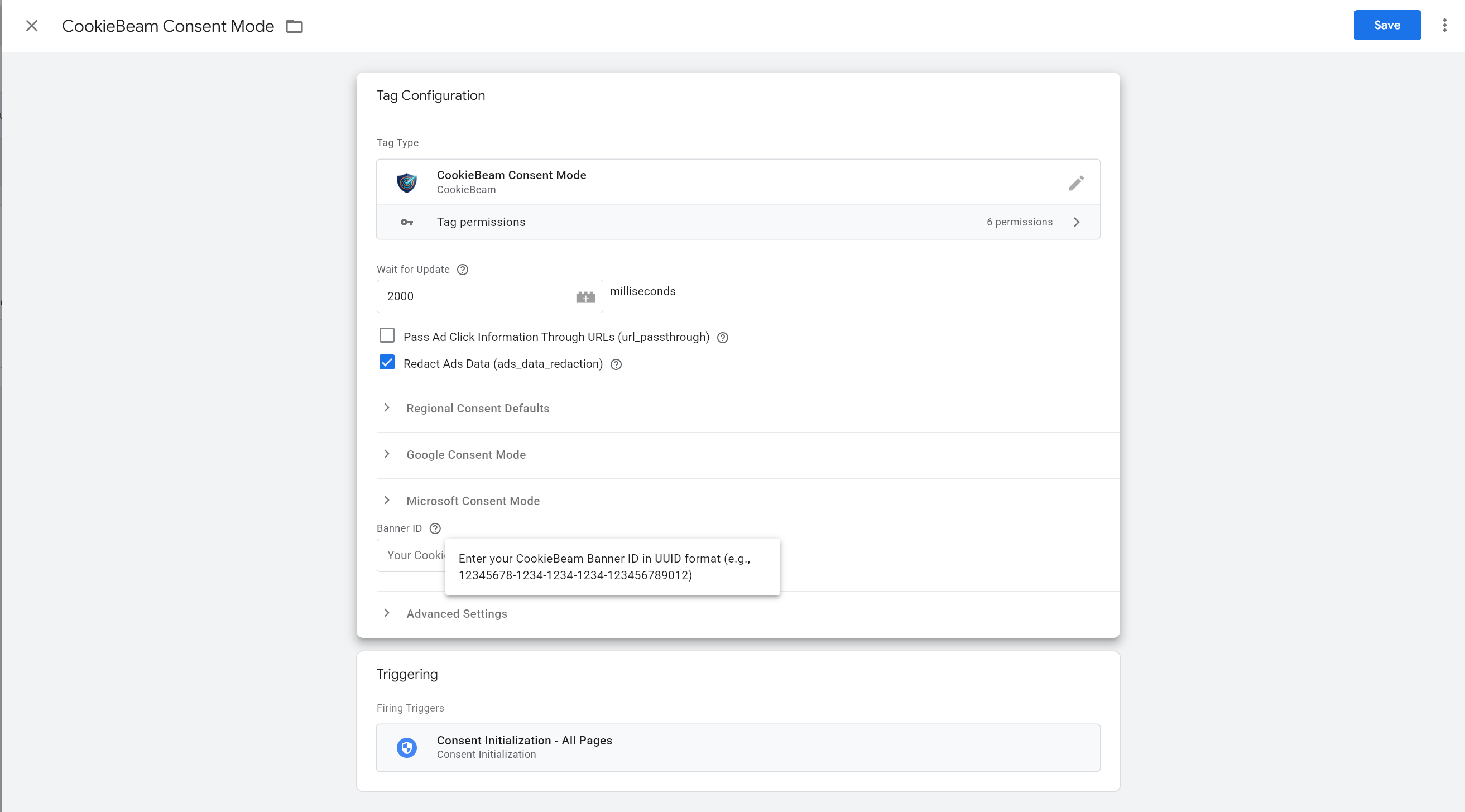
Create the Tag
Go to Tags > New. Select "CookieBeam Consent Mode" as the tag type. Enter your Banner ID in the configuration field.
Set the Trigger
Click Triggering and choose Consent Initialization – All Pages. Review the consent settings for each downstream tag; Consent Mode does not automatically block every tag or request.
Configure Regional Defaults (Optional)
Expand "Regional Settings" in the tag configuration. Set different consent defaults for EEA (denied by default for GDPR), US (granted by default for opt-out model), or other regions as needed.
Save and Publish
Test acceptance, rejection, and withdrawal in GTM Preview, including the consent state and requests from downstream tags. Save, submit, and publish your container version.
Google Consent Mode v2
Google Consent Mode v2 is required for EU compliance since March 2024. CookieBeam automatically signals consent states to Google Analytics 4 and Google Ads.
Consent Mode Parameters
| Parameter | CookieBeam Category | Purpose |
|---|---|---|
| ad_storage | Marketing | Controls advertising cookies (Google Ads, remarketing) |
| analytics_storage | Analytics | Controls analytics cookies (GA4, measurement) |
| ad_user_data | Marketing | Controls sending user data to Google for ads |
| ad_personalization | Marketing | Controls personalized advertising and remarketing |
| functionality_storage | Preferences | Controls enhanced website functionality |
| personalization_storage | Preferences | Controls personalization features |
| security_storage | Necessary | Always granted (security features) |
Microsoft Consent Mode (Clarity & UET)
CookieBeam also supports Microsoft Consent Mode for Clarity session recordings and UET (Universal Event Tracking) for Microsoft Ads. The template automatically sends consent signals to both platforms.
Microsoft Clarity
Clarity respects the Analytics consent category. When users grant analytics consent, Clarity will record sessions. When denied, Clarity enters a privacy-safe mode. No additional configuration needed - the CookieBeam template handles this automatically.
Microsoft UET (Bing Ads)
Microsoft UET for Bing Ads respects the Marketing consent category. Conversion tracking and remarketing only activate when users grant marketing consent. The template sends the appropriate consent signals to the Microsoft advertising platform.
Configure Your Existing Tags
After installing CookieBeam, update your existing Google and Microsoft tags to respect consent settings.
Update Google Analytics 4 Tags
Open your GA4 Configuration tag
In GTM, find your Google Analytics 4 Configuration tag and click to edit it.
Enable Consent Settings
Expand "Advanced Settings" > "Consent Settings". Check "Require additional consent for tag to fire" and select "analytics_storage".
Update Google Ads Tags
Open your Google Ads tags
Edit each Google Ads Conversion Tracking and Remarketing tag.
Enable Consent Settings
In "Advanced Settings" > "Consent Settings", check the consent requirement box and select both "ad_storage" and "analytics_storage".
Important: Tag Firing Order
The CookieBeam tag MUST fire before any other marketing or analytics tags. Always use the "Consent Initialization - All Pages" trigger for CookieBeam. This ensures consent defaults are set before other tags attempt to fire.
Testing Your Setup
Testing Checklist
Banner appears on page load
Visit your website and verify the consent banner displays
Consent Initialization fires first
In GTM Preview, check that CookieBeam fires on "Consent Initialization"
Default consent is "denied"
Check the Consent tab in GTM Preview shows denied states before interaction
Consent updates on acceptance
Accept cookies and verify consent states change to "granted"
GA4 respects consent
Verify GA4 only fires after analytics consent is granted
Preferences persist
Reload the page and verify your consent choice is remembered
Troubleshooting
Banner not showing?
- Check that the CookieBeam tag is firing in GTM Preview mode
- Verify your Banner ID is correct (no typos)
- Clear your browser cache and cookies, then reload
- Check browser console for JavaScript errors
Tags firing without consent?
- Ensure CookieBeam uses "Consent Initialization" trigger (not "All Pages")
- Verify other tags have consent requirements configured in Advanced Settings
- Check that no tags are set to fire on "Consent Initialization" except CookieBeam
Consent Mode not working in GA4?
- Enable Consent Mode v2 in your CookieBeam dashboard under Banner Settings
- Check GA4 Realtime report for consent signals
- Verify GA4 property has Consent Mode enabled in Admin > Data Streams > Consent settings
Need Help?
If you're still having issues, contact us at support@cookiebeam.com or visit our troubleshooting page. Our team is happy to help you get set up correctly.